Set up capture permissions
Allow the microphone and call audio before starting a conversation.
Live calls listen to your microphone and to the other side through call audio. Rehearsal uses your microphone, with the AI counterpart presented as text. Permission settings belong to this computer and apply across your workspaces. On a Mac, Sales Copilot requires macOS 14.4 or later.
Before your first call
The first time you sign in on a computer, Let Sales Copilot hear your call lists four items: Microphone, Call audio, hiding from screen share, and your plan. Allow each item, then choose Continue, or choose Do this later. Allowing a permission never starts a call.
Check the computer later
- Open your avatar, then Privacy & permissions.
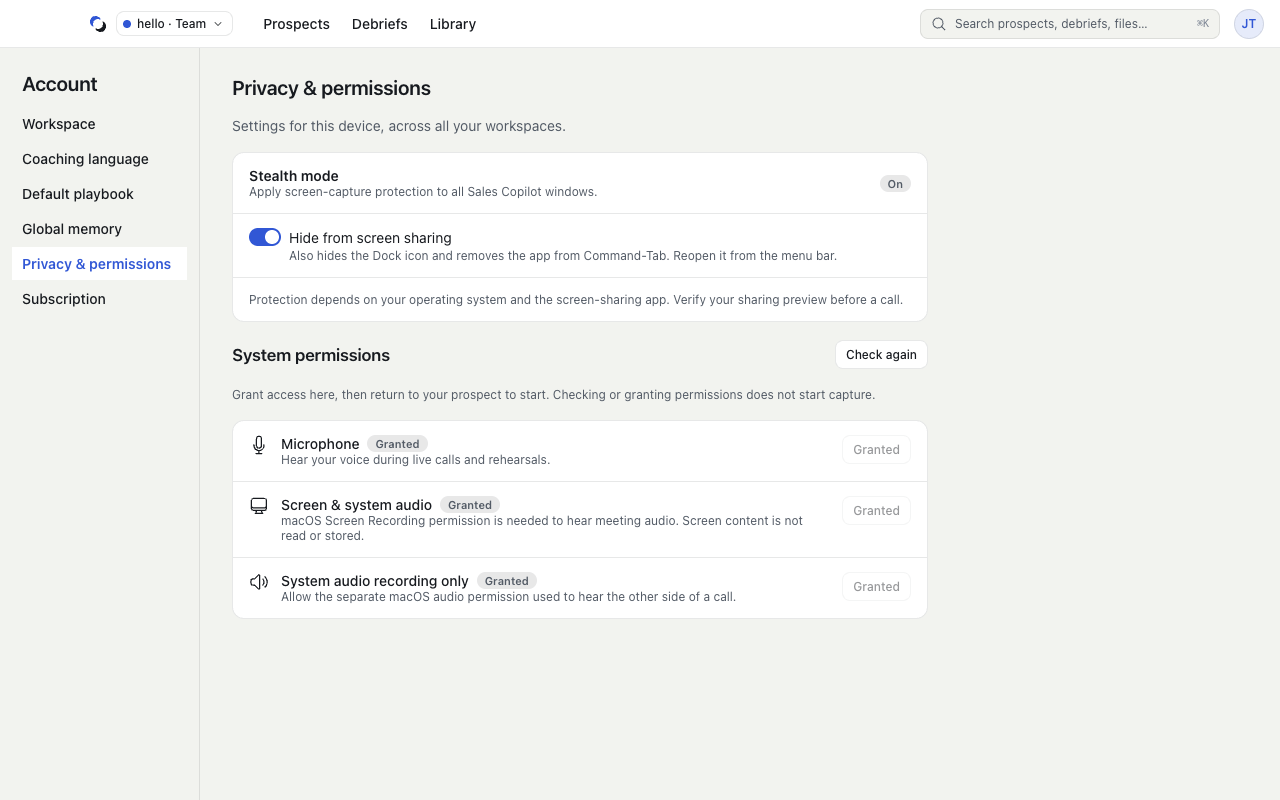
- Under System permissions, inspect Microphone and, on macOS, System audio.
- Choose Grant access for a permission that has not been asked yet, or Open System Settings for one that was denied. Return to the app and choose Check again.
- Before a call, the Ready rows in Start a call or a Prospect's launch rail should show Microphone and Call audio as allowed.
A missing permission is shown beside Start and disables it until fixed; a permission never asked reads Not set, and Allow access shows the operating system's prompt. A device restriction may require your administrator to change its policy; retrying cannot override it.
Call audio on macOS
On macOS, Sales Copilot needs only the System Audio Recording permission, listed under System Audio Recording Only in System Settings → Privacy & Security → Screen & System Audio Recording. It does not need or request Screen Recording, and it does not read screen content or store screen pixels, screenshots, or video. On Windows, call audio needs no separate permission.
Hide Sales Copilot from screen share
On macOS, Hide Sales Copilot from screen share and the Dock applies screen-capture protection to every Sales Copilot window, hides the Dock icon, and removes the app from Command-Tab; reopen it from the menu bar. On Windows, the switch reads Hide Sales Copilot from screen share. Protection depends on the operating system and sharing application, so check your sharing preview before the call.
Reviewed October 28, 2026