Your first live call
Start a call, read on-screen answers in the cockpit, and review the Debrief for your next call.
Sales Copilot brings on-screen answers into your live call. You can start a call straight away and add context later, or prepare a Prospect first so the copilot knows the pursuit. This guide covers the current development desktop, with macOS as the active development platform.
1. Sign in and allow call audio
Open the desktop and finish sign-in in your browser, then return to the app. The workspace selector beside the logo shows where you are working; Personal and each Team keep separate content.
The first time you sign in on a computer, Let Sales Copilot hear your call lists the microphone, call audio, hiding from screen share, and your plan. Allow each one, or choose Do this later; the same items return beside Start if anything is still missing. See permissions.
2. Start a call
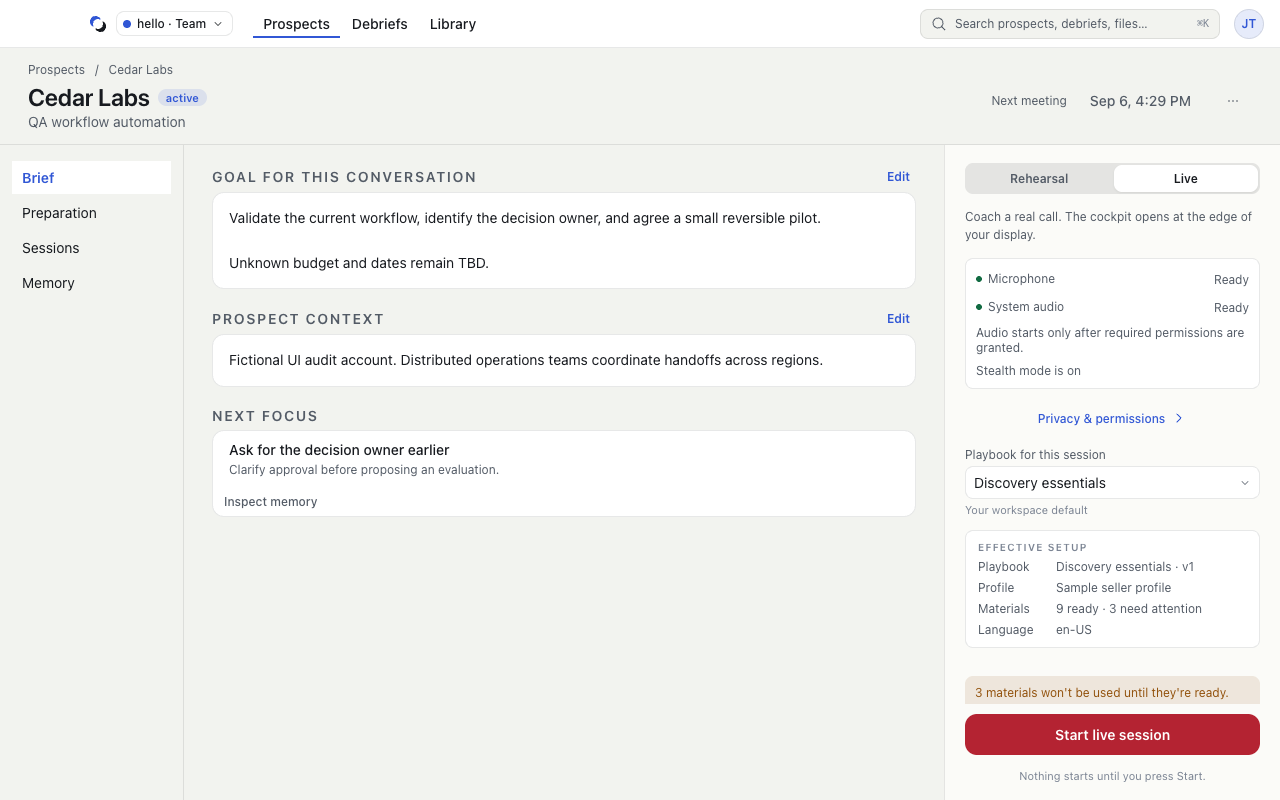
Choose Start a call in the top bar, or Start beside a meeting under Up next on Calls. In the drawer:
- Keep Live call selected. When a meeting starts within 30 minutes, Live is already chosen.
- Under Who’s it with?, pick or create the Prospect. You can leave it empty: the call is saved as an untitled call that you name or attach to an existing Prospect after it ends.
- Check the Ready rows: Microphone, Call audio, Hidden from screen share, Playbook, and, in a Team, Who can review. Personal Sessions are private; new Team Sessions are shared with you and the Team's owners and admins unless you choose Make private.
- Choose Start live call. Nothing is captured until you press it.
3. Read the cockpit
The cockpit opens beside your meeting. Each answer shows the question it answers under They asked, a Say line, up to two supporting points, and an optional question to ask back. See Use the live cockpit for earlier answers, shortcuts, and the Account Action Plan.
4. End the call and open the Debrief
Choose End in the cockpit or on the call indicator. The ended cockpit offers Open debrief; you can also find every Session under Calls → All sessions. Review the summary, coaching analysis, and transcript in the Debrief.
5. Prepare the next one
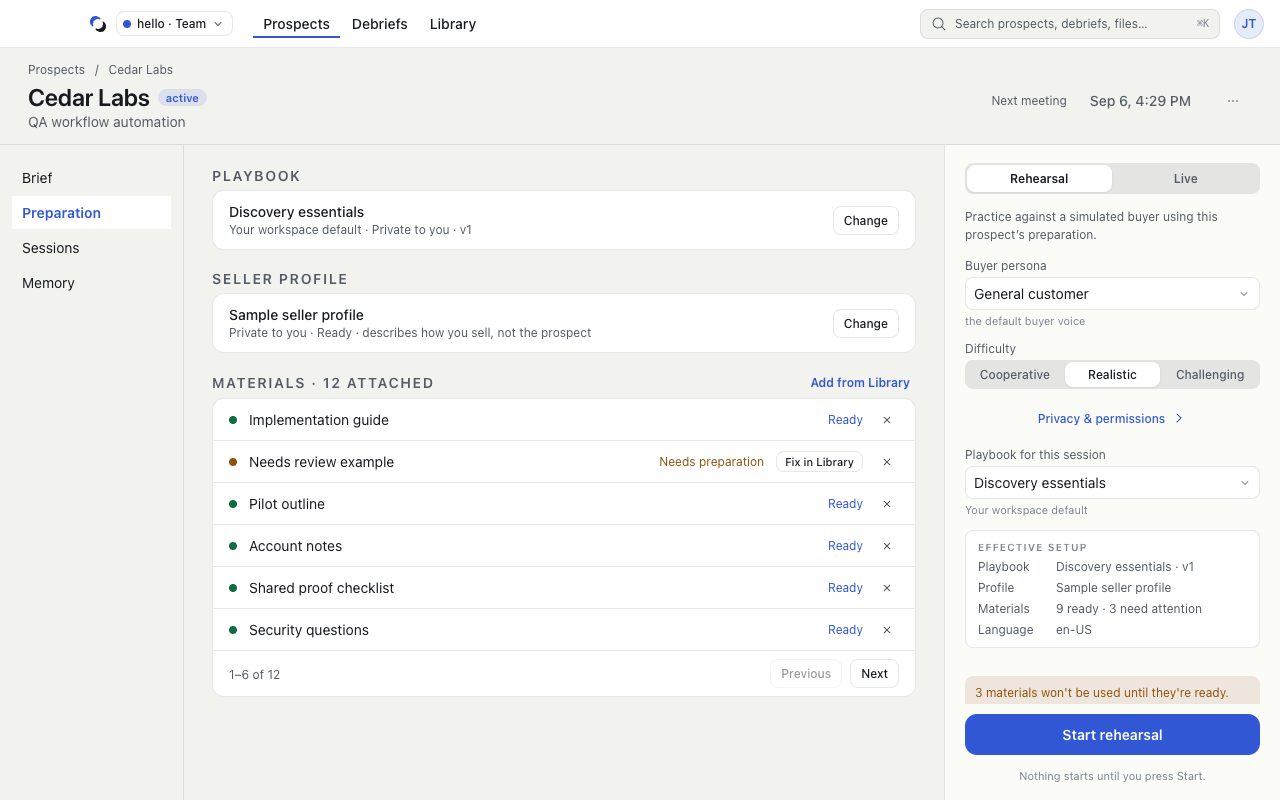
In Prospects, choose New prospect. This walkthrough uses the Selling scenario: enter Prospect company and What you offer, add an Opportunity brief, and choose Create prospect. In the Prospect's Preparation tab, choose a Playbook and use Add from Library to attach relevant materials. See Prepare a Prospect and Prospects and Sessions.
Reviewed October 28, 2026