Manage Library files
Upload, inspect, attach, and manage access to materials and profiles.
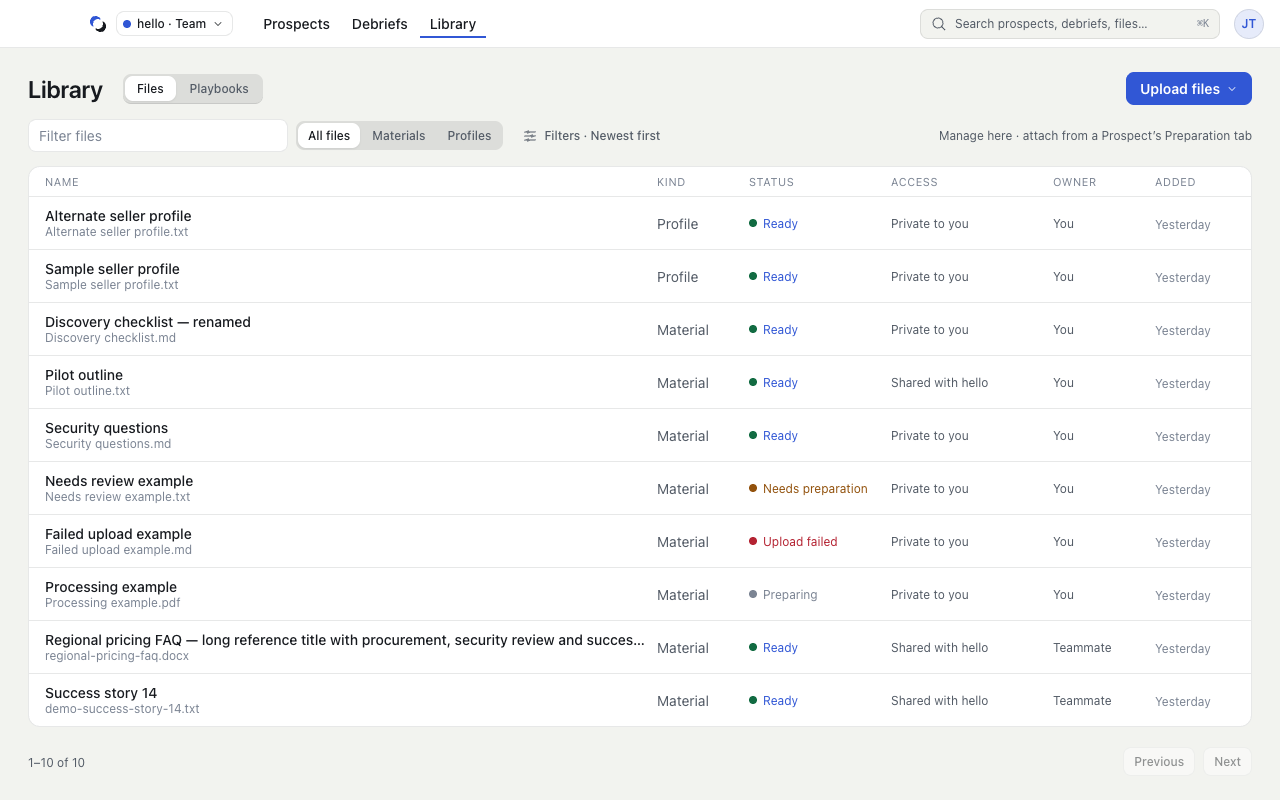
Library → Files holds the materials and profiles you can use to inform live answers and rehearsal. Filter by file name, or use Filters for kind, access, status, format, and ordering. Each file shows its format as a small tag, such as PDF or DOCX.
Upload and inspect
- Choose Upload files.
- Choose Material for collateral or Profile for a seller profile.
- Select the file in the system file picker.
- Inspect its status in the list or detail drawer. Wait for Ready before relying on it in a conversation.
Open a file row to inspect its name, status, access, owner, and added date. For a ready Profile, inspect Profile facts the copilot uses. Rename an owned file through the name's edit control, then choose Save name.
Attach useful materials
Uploading does not attach a file to a Prospect. Open the Prospect's Preparation tab, choose Add from Library, select the materials, and choose Attach with the selected count. The launch rail counts the attached files that are ready.
If a file needs attention, its inspector may offer Retry upload or Upload readable copy. The new copy must finish processing before it is usable.
Control access and removal
Owned materials in an eligible Team offer Share and Make private. Profiles remain private. A teammate's shared file is read-only for you.
Archiving hides the file from Library and makes it unavailable to future conversations, including attached Prospects. Review the confirmation before choosing Confirm archive. The current interface cannot restore an archived file. Archiving is not a claim that every related Session record was deleted.
Reviewed October 28, 2026