Create and choose a Playbook
Shape live answers with reusable instructions and check which version a Session will use.
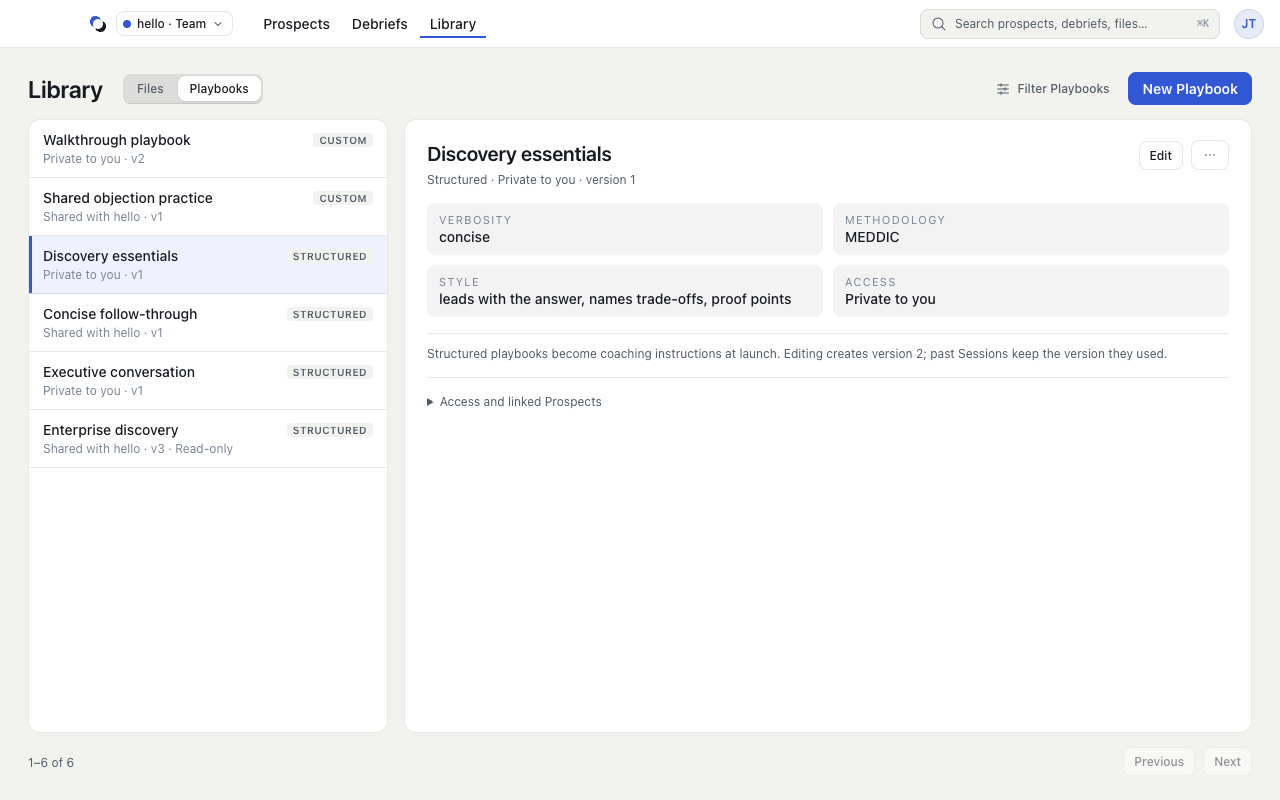
A Playbook shapes the copilot's live answers and rehearsal guidance. Open Library → Playbooks to search, inspect, create, or edit them. New Playbooks start private.
Create the instructions
- Choose New playbook and enter a Name.
- Choose Guided or Your instructions.
- For Guided, set Length, Method, and Assistance. Adjust Lead with the answer, Name trade-offs, and Include proof points as needed.
- For Your instructions, write Instructions covering positioning, objections, proof points, or tone. Insert Prospect fields with the field buttons; they are labeled with your default scenario's field names and filled from the Prospect at launch. Unknown fields prevent saving.
- Choose Create playbook.
Assistance offers Automatic — answer when helpful and On request — only when I ask. Automatic assistance can hold back a cue; use Answer anyway in the cockpit when you want guidance for that cue. On-request assistance answers only when you ask, for example with the cockpit shortcut for the latest question.
Choose where it applies
In a Prospect's Preparation tab, choose Change beside Playbook to select its setting. For a one-call change, choose Change playbook in the launch rail. That override leaves the Prospect setting unchanged.
For the account-wide choice, open your avatar, choose Account settings, then Default playbook. Before starting, check the Playbook row under Ready.
Edit and share carefully
Use Edit on an owned Playbook, then Save changes. Saving creates a new version; past Sessions keep their copy. A teammate's shared Playbook offers Duplicate to edit. In an eligible Team, an owner can explicitly share their Playbook or make it private again.
Reviewed October 28, 2026